Monday, November 06, 2006

My first blog from Live Writer

This is my first blog post that I have generated in Windows Live Writer Beta.  Until now, I have used the online editor.  The fat client sports a cool WYSIWYG editor and a lot of great accelerator keys.  Publishing is a snap and seems to take less time compared with the web editor.

The team has provided an SDK and encourages the development of plugins.  There is a page dedicated to these here.  I found a neat one that helps insert code snippets.  Insert Code for Windows Live Writer supports C#, HTML, MSH, JavaScript, Visual Basic and TSQL.  I wish that there was a way to assign accelerator keys to the plugins.  For now, I'll just have to go through the menu.

Friday, November 03, 2006

Portable App Week - FastStone Capture

We've come to end of Portable Apps Week and I'm a little sad. But all good things must come to an end. For my last app of the week, I'm going back to FastStone and their Faststone Capture utility. Capture is a screen capture utility that lets you easily capture anything on the screen including windows, objects, full screen, rectangle regions, freehand regions, and scrolling windows. It comes with an editor that allows for cropping, adding text, highlighting and drawing. Not bad for 1.2MB. It's what I've been using to generate the images for all of this week's previous posts.

I know what you're thinking. How does this compare with Snagit. Well, it isn't quite as full featured as Snagit. It doesn't do text capture, menu capture or video capture. It does allow for freehand capture regions. I'm not sure if Snagit has that or not. FastStone Capture has a much smaller footprint than Snagit. Hmmm, what else? Did I mention that it was free?

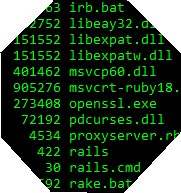
Here is a capture I did freehand. It is supposed to be an octogon.

Thursday, November 02, 2006

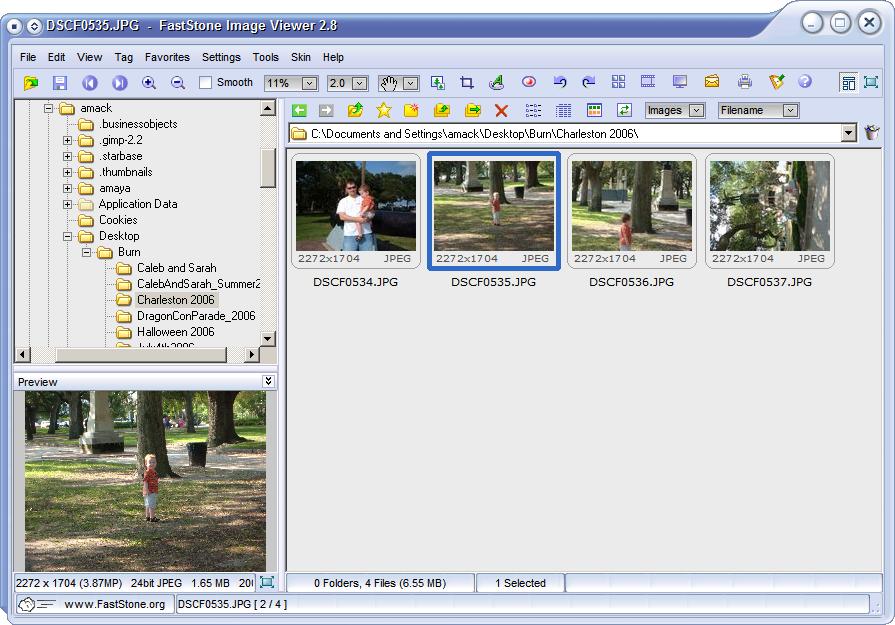
Portable App Week - FastStone Image Viewer

When someone asks me to help them with their website, I have to remind them that I'm a developer, not a graphic artist. As a developer I strive to make pretty things, but I have no formal artistic training. I had a really good friend that was a professional graphic artist. His firm did work for Coke and Six Flags. I probably could have learned a lot from him, had my girlfriend at time not dumped me and ran off and married him.

Happy place, go to your happy place.

I am a big fan of the gimp. It's open sourced, free, powerful and difficult to learn. It's also really big and takes a long time to load. Since I spend most of my time editing pictures of the kids, removing red-eye and cropping, I don't always need the power of the gimp. So I was excited to find FastStone's ImageViewer.

"FastStone Image Viewer is a fast, stable, user-friendly image browser, converter and editor. It has a nice array of features that include image viewing, management, comparison, red-eye removal, emailing, resizing, cropping and color adjustments. Its innovative but intuitive full-screen mode provides quick access to EXIF information, thumbnail browser and major functionalities via hidden toolbars that pop up when your mouse touch the four edges of the screen. Other features include a high quality magnifier and a musical slideshow with 150+ transitional effects, as well as lossless JPEG transitions, drop shadow effects, image annotation, scanner support, histogram and much more. It supports all major graphic formats (BMP, JPEG, JPEG 2000, animated GIF, PNG, PCX, TIFF, WMF, ICO and TGA) and popular digital camera RAW formats (CRW, CR2, NEF, PEF, RAF, MRW, ORF, SRF and DNG)."


It's practically microscopic(3MB) compared to the gimp(40MB) and its fast. The full screen mode is really cool and intuitive, once you get the hang of it. There are a ton of shortcut keys that make browsing a little easier. Red eye removal and rotation are a snap. The cropping feature is cool because it allows for you to set the crop size to monitor resolutions. Great for getting a picture of my daughter in her bumble-bee costume for my wallpaper. It comes with dual monitor support, so you can do full screen on one monitor and look at the image viewer on the other. It will even let me link to an external program, if I want to edit the image in something more powerful.

And don't forget, this is a portable app. There are no ties to the registry. So next time you take your USB drive over to your parent's house to show them the pictures you just took of the grandkids, you'll have a great image viewer to view them in.

Wednesday, November 01, 2006

Portable Apps Week - FolderSize

It's an all to familiar proplem. Your favorite drive (HDD, USB, etc.) has filled up and you need to make some space. So you go into explorer and pull up your drive. Explorer shows you a list of folders and now its up to you to figure out which one is taking up the most space. This means a lot of right clicking. Enter FolderSize from RoteBetaSoftware. What a great play on words.

Folder size gives you a graphical representation of the folder sizes. Take a look at my ruby installation. You'll quickly figure out that the 'lib' folder is far and away the largest folder in the directory. You can even click directly on one of the bars in the graph to drill down into sub folders. Its a neat little utility (333kb) that comes in handy from time to time.

Tuesday, October 31, 2006

Portable App Week - WinAudit

Today's portable application comes to us from Parmavex Services. It took me a while to figure this company out. If I understand it right they have two main functions. They provide network services, software development, web hosting and IT services. And also, they supply spare parts for construction plant equipment. Kind of like a Barber shop that sells socks.
Despite their questionable lack of business direction, they have put out a pretty cool free-ware utility called WinAudit. WinAudit scans your machine and gathers up all the information it can find into a neat html report. Here is the description off the web site.


"The programme reports on virtually every aspect of computer inventory and configuration. Results are displayed in web-page format, categorised for ease of viewing and text searching. Whether your interest is in software compliance, hardware inventory, technical support, security or just plain curiosity, WinAudit has it all. The programme has advanced features such as service tag detection, hard-drive failure diagnosis, network port to process mapping, network connection speed, system availability statistics as well as Windows® update and firewall settings."


And when they say every aspect, they really mean it. It even read the serial number off my motherboard. You can save the results to an html file, a pdf, a chm, several flavors of text and XML. I wish I had this when I was still doing network support. It will come in handy the next time I'm troubleshooting on someone else's machine.

Monday, October 30, 2006

Portable Apps Week - Smart Undelete

I've been really keen on the idea of portable applications lately and last weekend I picked up a few more for my USB drive. So, I'm declaring a portable app week here at Mack the # implement. Let's get started with the only application that actually cost me any money.

I was tidying up some folders on my desktop at home, got a little 'Shift+Delete' happy, and accidentally deleted all the digital pictures from my son's first trip to the Georgia Aquarium. This is a bad place to be. My mind began calculating the odds that my wife would just forget that the pictures ever existed. Of course, NASA would have a hard time coming up with that number. Then it hit me, they aren't really gone. They're just marked as deleted.

After a quick search (on another machine), I found several recovery tools. I finally opted for Smart Soft's Smart Undelete. It was cheap, had a small footprint(<1mb) and could be used from a USB drive. It also has a 100% money back guarantee.

The UI is simple and easy to use. Just tell it where to scan. It also gives you the option to only scan for certain file types. In my case, .jpg files. I was able to get everything back. I even justified to expense to my wife by explaining how I could use it the next time one of our many relatives deletes something important. Yeah... that's the ticket. ;)

Monday, October 02, 2006

Pausing a PowerShell Script

I was having an issue while running my watir scripts where if I ran a script that saved information to the database on two or more machines at the exact same time, failure was sure to follow. This is really annoying and not likely to happen in the real world. However, in the alternate universe where I do my testing, this happens all the time. Alternate universes are cool.

We now have a lot of Watir scripts, and it is really tedious to run them individually. So I wrote a script that calls each one sequentially using PowerShell . With my new batch script, I am able to kick off all the Watir scripts from all of my test boxes at the same time and walk away while the website gets put through its paces. This works great until New York and DC try to save changes to the same story at the same time. One of the watir scripts will fail. Usually New York wins. Stupid New York.

I'm sure that there is a great solution, which involves messing with the database, but I don't have that kind of time, or patience or attention span. For the time being, I just wanted to put a pause in the execution of my PowerShell script that waited for me to press enter to continue. So here you go:

Code of Power:


[System.Console]::ReadLine()

Awesome!

Wednesday, September 27, 2006

How to generate a connection string

1 The other day I found myself trying to write my own connection string to a System DSN I had just set up. That was stupid and silly and I know that now. Seriously, who remembers the syntax for creating a connection string? No one. Why? Because we don't need to create these things every day. And also, it is stupid and silly.

So I donned the ceremonial robe and beseeched the great google for help. Of course, I was presented with a mountain of information on connection strings. But then it pulled out a large chest that looked like something right out of a pirate movie. I think this was because it happened to be International Talk Like a Pirate Day. The great google loves this stuff.

It spoke these words to me, "Avast! These examples be good, but ye have the noggin of a bilge rat. Perhaps ye be in need of some voodoo, ...some Windows voodoo." And it pulled a scroll from the chest and handed it to me with a twisted ferret look in its eyes.

Hmmm... voodoo, eh? Sounds iffy. But then again, not all windows voodoo is bad. There have been books dedicated to the subject. And I think we have all been in situations where we would gladly rub our computer monitors down with a fried drumstick from KFC while chanting the names of the 12 dwarves in reverse alphabetical order, if it would just keep IE from spewing random "Operation aborted" errors at our users. But that is another blog post. I wasn't that desperate, yet. I opened up the scroll, read the instructions and said to the great google, "This may be the grog talking, but I like sheh way you sthink." What follows are simple steps to get windows to generate a connection string that even a bilge rat could perform after a couple mugs of grog.

  1. Create a new file, the name doesn't matter, and give it a .udl extension.
  2. Double click on your new file. This will bring up the Data Link Properties dialog
  3. Select the "Use connection string" option and then click the "Build..." button.
  4. Your connection string will show up in the connection string text field. You can also access it by opening up your udl file in a text editor.

Thursday, September 14, 2006

Mouseless Firefox

1I just got back from vacation and I guess I left my mind on the beach, because I forgot to pick up my mouse on the way out the door. No biggy, I still have my laptop's touch pad and I don't really use the mouse much anyway. I was even able to pick up a new short cut key, just because I had to.

In Query Analyzer:
Shift+F6 - Switch between panes.

I think this is a good time to talk about some "mouseless" features and extensions that I have found very useful in Firefox. Here are some of my least known/most favorite shortcut keys for Firefox:

F6/Shift+F6 - Cycle through the frames on a page.
F7 - Enable/Disable caret browsing. The caret browsing is great for selecting and copying text.

One of my favorite Firefox add-ons is Mouseless Browsing. It takes some getting used to, but now I don't know what I would do without it. This extension enables browsing in Firefox using only the numpad keys. The extension puts a number next to each control or link on the page. All you have to do is type in the number and hit enter to browse to that link or control. You can even hold down the alt key while entering the number to open the link in a new tab. The numbers do mess with the formatting on the page, but it is really easy to turn them on or off. Just use the period key on the numpad.

Friday, September 08, 2006

Portable Apps are cool!

I'll be going on vacation next week to the beach and then to visit some family. That means I'll probably spend some time on their computer. Now, I like my little utilities that I use from day to day, and I would like to use them but I don't want to take the time to install them. I remembered that Hansleman was looking for a portable browser and it got me searching for other portable applications.

What is a portable application? Here is the definition from the PortableApps web site:http://portableapps.com/

A portable app is a computer program that you can carry around with you on a portable device and use on any Windows computer. When your USB flash drive, portable hard drive, iPod or other portable device is plugged in, you have access to your software and personal data just as you would on your own PC. And when you unplug, none of your personal data is left behind.

So, what kinds of portable applications are out there? About everything you could want and then some.

Luckily for me I had just picked up a shiny new Verbatim 512MB USB Flash Drive. It was just over ten bucks at Office Max. Its light and feels a lot sturdier than my last one. Here is a list of some of the apps that I have installed on my USB drive.

SysInternals:
Go to SysInternals while you still can and at the very least get:
Process Explorer
FileMon
RegMon
Autoruns
TCPView

Internet Stuff:
Browsar - Private browsing in IE. http://www.browzar.com
TorPark - Ultra private browsing in FireFox. http://torpark.nfshost.com/
Gaim Portable - IM Client. http://portableapps.com/apps/internet/gaim_portable

File Stuff:
7-Zip portable - Have you ever been stuck without a way to open up a zip file? http://portableapps.com/apps/utilities/7-zip_portable
ClamWin Portable - Portable virus scanner. http://portableapps.com/apps/utilities/clamwin_portable
FileZilla - FTP utility. http://filezilla.sourceforge.net/
Foxit Reader - Smaller and faster than Acrobat reader for pdfs. http://www.foxitsoftware.com/pdf/rd_intro.php

Just for fun:
Sudoku Portable http://portableapps.com/apps/games/sudoku_portable

Unclassified but cool:
PStart - PStart can be configured to start up when you plug in your USB drive. I creates an icon in your systray that acts like a start menu for your drive. Giving you quick access to the applications in a menu.

All these utilities only added up to 77MB. I wonder what it would take to get everything that we need to do our jobs as developers onto a 1GB USB drive. We wouldn't have to worry about dragging around laptops as long as we had a clean XP install to plug our drive's into. You wouldn't even require an internet connection for some of the apps. 1
I'll be going on vacation next week to the beach and then to visit some family. That means I'll probably spend some time on their computer. Now, I like my little utilities that I use from day to day, and I would like to use them but I don't want to take the time to install them. I remembered that Hansleman was looking for a portable browser and it got me searching for other portable applications.

What is a portable application? Here is the definition from the PortableApps web site:

A portable app is a computer program that you can carry around with you on a portable device and use on any Windows computer. When your USB flash drive, portable hard drive, iPod or other portable device is plugged in, you have access to your software and personal data just as you would on your own PC. And when you unplug, none of your personal data is left behind.

So, what kinds of portable applications are out there? About everything you could want and then some.

Luckily for me I had just picked up a shiny new Verbatim 512MB USB Flash Drive. It was just over ten bucks at Office Max. Its light and feels a lot sturdier than my last one. Here is a list of some of the apps that I have installed on my USB drive.

SysInternals:
Go to SysInternals while you still can and at the very least get:
Process Explorer
FileMon
RegMon
Autoruns
TCPView

Internet Stuff:
Browsar - Private browsing in IE.
TorPark - Ultra private browsing in FireFox.
Gaim Portable - IM Client.

File Stuff:
7-Zip Portable - Have you ever been stuck without a way to open up a zip file?
ClamWin Portable - Portable virus scanner.
FileZilla - FTP utility.
Foxit Reader - Smaller and faster than Acrobat reader for pdfs.

Just for fun:
Sudoku Portable

Unclassified but cool:
PStart - PStart can be configured to start up when you plug in your USB drive. I creates an icon in your systray that acts like a start menu for your drive. Giving you quick access to the applications in a menu.

All these utilities only added up to 77MB. I wonder what it would take to get everything that we need to do our jobs as developers onto a 1GB USB drive. We wouldn't have to worry about dragging around laptops as long as we had a clean XP install to plug our drive's into. You wouldn't even require an internet connection for some of the apps.

Thursday, September 07, 2006

Decode ViewState with PowerShell

We have been screwing around with ViewState lately, trying to resolve some issues and shrink down the size. In the process, we've downloaded several utilities to decode the viewstate. However, even these were failing to decode if the Viewstate was over a certain size or if it had non-native datatypes. Since we didn't have access to the source code, we couldn't fix the problems with the utilities. So yesterday, at approximately 3:57 pm, I thought to myself, "Gee, how hard could it be to write my own decoder?" But who wants to create a new VS project for a dinky little utility that you may never use again. Time for a PowerShell Script. It's one file with no compiling necessary.

This script reads the contents of a text file containing the viewstate in question. Then it decodes it, replaces the non-printable characters with pipe symbols and writes the results to another text file. You could easily rewrite this to pass in the viewstate string as a parameter to the script, if you wanted to. You're the kind of person who isn't afraid to paste a +50kb string into your command line of choice. Get down with your bad self!

A note on the non-printable characters: As of .NET 2.0, the viewstate is now delimited with non-printable characters. To learn more read Fritz Onion's blog on the subject.

Now, onto the script:

# Get the file from the arguments and read it into the x
$x = Get-Content $Args[0]

# Parse the string into a byte array
$byteArray = [System.Convert]::FromBase64String($x)

# Create a new encoding object
$enc = New-Object System.Text.ASCIIEncoding

# We need a charArray with the same length as the byteArray. I am having a
# hard time finding out how to create an strongly typed empty array of a given
# length in powershell. If you know how, please let me know. For now I just
# make charArray a copy of byteArray that will be overwritten later.
[System.Char[]]$charArray = $byteArray

# Do the decoding.
$enc.GetDecoder().GetChars($byteArray, 0, $byteArray.Length, $charArray, 0)

# Build the result string.
$charArray | ForEach-Object { $result += $_ }

# This is a neat regex to replace all the non-printing characters with something else.
# Then the result is written out to ViewStateDecoded.txt.
$result -replace "[\x01-\x1F]+", "|" | Out-File ViewStateDecoded.txt

I could probably get this down to 5 lines of code or less, but it more readable this way.

Wednesday, September 06, 2006

Set Window Title in PowerShell

1 It's been a month since my last post, and I'm sure that you were thinking I was dead. Not quite, just really busy. Here's a little time saving tip that I implemented last week in PowerShell. I was working on several issues and had multiple PowerShell windows open. Its kind of hard to find the instance of PowerShell that you are looking for while alt+tabbing through TaskSwitchXP. TaskSwitch even has a preview window, which helps as long as your window isn't minimized. The problem was that I had 3-4 PowerShell windows all titled "Windows PowerShell".

Wouldn't it be great if I could change the window title to something more meaningful? No sweat, PowerShell gives you access to the window through the $Host variable. The command looks like this "$Host.UI.RawUI.WindowTitle = 'My New Title'". Of course, I'll never be able to remember this and it does seem like a lot of typing. So I added the following function and alias statement to my profile.

function Set-WindowTitle($title)
{
$Host.UI.RawUI.WindowTitle = $title
}

set-alias swt Set-WindowTitle

Notice that I tried to mimic the verb-noun convention used by the rest of the PowerShell commands. Now, to set the title I can type in "swt 'My New Title'".

Wednesday, August 09, 2006

RDoc Documentation for Watir

In my dealings with Watir, I have been overlooking a very useful reference tool. The kind Watir developers have conveniently compiled class documentation with RDoc. RDoc is the Ruby version of NDoc (R.I.P.) This is great for when you want to see what the IE object really does. You can access this documentation here.

Your Install Dir\Watir\doc\rdoc\index.htm

Wednesday, July 19, 2006

Edit IE Address Bar with PowerShell

Lately, I've been doing a lot of testing of our web app. And for the last month or so, its all been on the same page. Being a shortcut key addict, I would type the url to the page in IE's address bar and then use F4 and the arrow keys to call it. As long as I kept going to that page, the url would always be at the top of the list. However, if I started going to other sites, the address bar's list would get long and my test url would get lost somewhere inside. It's a real pain the rump to go searching for it.

So I put together this little PowerShell script. It clears the address list and puts in the test urls that I want.

#1
$regpath = "HKCU:\Software\Microsoft\Internet Explorer\TypedURLs"
$xmlpath = "C:\Allen\PSScripts\AddressBarLinkList.xml"
cd $regpath
#2
(Get-Item . ).GetValueNames() |
Where-Object {$_ -match "^url\d+"} |
ForEach-Object { Remove-ItemProperty . $_ }

#3
$xml = New-Object xml
$xml.Load($xmlpath)

#4
$xml.urls.url |
ForEach-object {
New-ItemProperty -Path $path -Name $_.name -type string -value $_.link
}
cd c:

Let's look at each step and see what's going on. In step #1, I create 2 variables, $regpath and $xmlpath, and load them with some paths. Note that the regpath uses the registry key HKCU as a drive. In PowerShell the registry keys are treated equivalent to folders in the File System and registry values are treated equivalent to files in the File System. All you have to do is change directory to HK whatever and your in.

In step #2, we see a string of commands piped into each other. First we get the names of all the values in the key. Next we use Where-Object to pull only those values that match a regular expression. Then I delete all the values in the result set.

Step #3 starts with the creation of a new variable, $xml, of type xml (of the .NET xml's). Pretty much, what I'm doing here is creating a new Xml.Document object. On the next line I call the xml object's Load method to load an xml file from a filepath. The xml file contains a list of urls that I want loaded into the address bar. Take a look:

<urls>
<url>
<name>url1</name>
<link>http://localhost/Application/test.aspx?ItemId=70946</link>
</url>
<url>
<name>url2</name>
<link>http://DevServer/Application/test.aspx?ItemId=70946</link>
</url>
</urls>

In step #4, I get a list of all the url nodes. What is really interesting is the notation I used to get them, "$xml.urls.url". It reads like an XPath statement, just with dots instead of slashes. Next I use the New-ItemProperty command to create a key value for each of the urls in my xml file.

So this script edits the registry, reads an external file and parses an xml document. That's a lot when you consider that it took what amounts to 6 lines of code. I put in some line breaks and formatting to make it easier to read. Also note, that I didn't use any aliases in the script. It could be rewritten as:

cd HKCU:\Software\Microsoft\Internet Explorer\TypedURLs
(gi . ).GetValueNames() | ? {$_ -match "^url\d+"} | % { rp . $_ }
$xml = New-Object xml
$xml.Load("C:\Allen\PSScripts\AddressBarLinkList.xml")
$xml.urls.url | % { New-ItemProperty -P HKCU:\Software\Microsoft\Internet Explorer\TypedURLs -N $_.name -t string -v $_.link }
cd c:

Friday, July 14, 2006

Access your classes in PowerShell

In this example, we will build a small class library and "shell out" to it in a PowerShell script. I know that it is dinky and lame, but bear with me. We will build on this knowledge in a later post. Here are the steps to reproduce the example.

Fire up your favorite text editor and paste in the following code. I'm using Notepad2 http://www.flos-freeware.ch/notepad2.html. It has c# syntax highlighting. Save your file as "Person.cs". For me, the full path look like "C:\Allen\Spikes\PSClassAccess\Person.cs".

using System;
using System.Text;

namespace Person
{
public class Phrases
{
public Phrases()
{
}

public static string Hello(string Name)
{
return "Hello " + Name;
}

public string GoodBye(string Name)
{
return "Goodbye " + Name;
}
}
}

Open up an instance of the Visual Studio command prompt. Then browse to your folder and enter the following command. If all goes well, you will now have a Person.dll file.

csc /target:library Person.cs
Open another instance of your text editor and paste in this code.

# This loads the dll into memory
[System.Reflection.Assembly]::loadfrom("C:\Allen\Spikes\PSClassAccess\Person.dll")

# Write a blank line for aesthetic reasons
echo("")

# Here we call the static method directly from the class.
[Person.Phrases]::Hello("Allen")

# Now lets create an instance of the class.
[Person.Phrases] $Greeter = New-Object -TypeName Person.Phrases

# Here we call the non-static method GoodBye.
$Greeter.GoodBye("Max")

Save your file as "HelloGoodbye.ps1". The "PS1" extension is PowerShells default extenstion for scripts. The first thing that we do in the script is load our dll into the shells memory. A couple of lines down we call the static Hello method. Notice that the type is enclosed in square brackets. Next we use the New-Object commandlet to create a new instance fo the Phrases class as $Greeter. In Powershell, all variables begin with the $ character. Finally we use the new object to call the Goodbye method.

So lets see what we get. Open up a PowerShell console and browse to the directory where you saved your script. Run the script by typing "./HelloGoodbye.ps1". Your results should look like the following:

PS> ./HelloGoodbye.ps1

GAC Version Location
--- ------- --------
False v2.0.50727 C:\Allen\Spikes\PSClassAccess\Person.dll

Hello Allen
Goodbye Max

Sweet! The first thing we see is the result from loading the dll. You'll quickly determine that it is not in the gac and was compiled with version 2 of the .NET framework. Then we see the results of our script. Its a beautiful thing.

This really shows the power and versatility of PowerShell. How many uses just popped into your head?

Thursday, July 13, 2006

Just Upgraded StarTeam

I just upgraded to StarTeam 2005 and here are my initial thoughts. The first thing I noticed is that it doesn't look all that different. That's probably smart. No need to burden the users with a learning curve. Aesthetically, they prettied up the icons in the toolbar and sported a new splash screen.

They must have read my earlier blog post, because the All Descendants functionality is now available in the Change Request and File Menus. There still isn't a dedicated shortcut for it, but you access it quickly using "Alt+L, A" when in the file view and "Alt+C, A" when in the Change Request view.

The biggest item on my StarTeam wish list is the ability to easily extend the application. Maybe I'm spoiled from using Visual Studio, where I can assign keyboard mappings and add plugins. One thing that gets me is Borland's willingness to give us access to the SDK, but not let us use it to extend StarTeam directly. I have functionality that is still missing. I can write it, but I can't run it from inside StarTeam.

Wednesday, July 12, 2006

List files based on number of lines.

1I was working on a javascript error in IE which returned the line number of the error but not the file where the error occured. The page was accessing half a dozen seperate js files. This particular page doesn't do to well in FireFox, so using Venkman was out. However, there was something unusual about the error. The line number was 1202. I thought to myself, "How many js files could we possibly have with more than a thousand lines of code?" It actually isn't that many. But how to find this out? I'll tell you how! Powershell!

I opened up a powershell console, changed the directory to the directory where we keep all the js files, and typed in this little ditty (after several revisions, of course).
ls *.js | where {(gc $_).length -gt 1200}
Which returned:
Mode LastWriteTime Length Name
---- ------------- ------ ----
-a--- 7/11/2006 2:12 PM 53520 JScript.js
-a--- 6/15/2006 1:43 PM 43806 StoryDescription.js
-a--- 7/11/2006 2:12 PM 88027 StoryDescriptionEdit.js

Let's look at what just happened here. At first glance, you'll notice that the line is pretty terse. That's because I used predefined aliases for the functions that I called. In PowerShell, every command that you call is actually a small application known as a commandlet. PowerShell also lets you alias these commandlets, in order to save you some time. There are many predefined aliases. To see a list of the aliases, just type "alias" at the prompt. If you pass in an alias then it will limit the results to that alias name. So if you type in "alias ls", you'll see that you're actually calling Get-ChildItem. It has just been aliased to make it easier for Unix/Linux users. It is also aliased as "dir". In fact, the entire line could be rewritten without any aliases as
Get-ChildItem *.js | Where-Object { (Get-Content $_)
.length -gt 1200 }

So the first little bit of the string returns a list of all the files in the current directory that have a ".js" extension. Then the pipe symbol, "|", passes the results to the next code statement. The where-object commandlet acts like a filter and only returns the items that meet the specified criteria. In this case we're making sure that the number of lines in the file is greater than (-gt) 1200.

We determine the number of lines with the Get-Content commandlet. This commandlet returns an array of all the lines in the file. You can even loop through the array, but that's another blog post. We just need to get the length property off of the array object.

And there you have it. Only three files in the directory have more than 1200 lines of code and my page only uses one of them. Even though I'm just a newbie, I'm loving PowerShell. Unlike most of my peers, I refuse to believe that it is only for system admins.

Tuesday, July 11, 2006

Random Thoughts

It's been a slow week for blogging. I've been pretty busy with the latest push. Here are few of my random thoughts that occured to me as I worked on StarTeam tickets.

9:05 Apparently, there is no "I" in "StarTeam".
10:38 If I were a pirate, my favorite word to say would be "Scurvy".
11:07 Mmmmm... Rosa's
1:43 The new nickel really creeps me out. Stop staring at me!
2:05 Stupid Farpoint! What would the magic eight skull do?
2:06 Walk the plank? ...riiight.
2:10 I just had a great idea for a blog post.1

Friday, July 07, 2006

Translate Time values with Javascript

11 On my current project, I have a need to convert a string to a valid time format. The user wants to be able to enter time in several formats. For example military time(1400), hour followed by a or p(2p), etc... I had a solution that got the job done, but it was getting long, was covered with bandaids and smelled like spaghetti. So I refactored it and came up with this approach. If you take out the comments, it has less than half the lines of code in the previous version. I use a trim string function to trim the spaces off the front and back of the time string, so I'm including it at the bottom.

Let me know if there is a better way to do this or if this might solve a problem you are having.


function fixTime(strTime)
{
var dayHalf = "a";
var Hour = "";
var Minute = "00";

// Drop the case
strTime = strTime.toLowerCase();

// Trim the spaces from the front and back
// of the string
strTime = TrimStr(strTime);

// Check for a|am|p|pm.
var amMatch = /(am|a|pm|p)$/.exec(strTime);
if(amMatch != null)
{
if(/p/.test(amMatch[0]))
dayHalf = "p";
}

// Remove a|am|p|pm
strTime = strTime.replace(/[a|p|m|:|\s]*/g, "");

// Now we should have nothing left but numbers.
// If the length of the string is 1 or 2,
// then we are dealing with hours only.
if(strTime.length < hour =" strTime;" hour =" strTime.slice(0," minute =" strTime.slice(-2);"> 23)
Hour = Hour % 24;

// Convert the hour and dayhalf.
if(Hour > 12)
{
Hour = Hour - 12;
dayHalf = "p";
}
else if(Hour == 0)
{
Hour = 12;
dayHalf = "a";
}

// This line ensures that the Hour variable is
// converted to a number type so the result
// won't have any preceding zeros.
// ex. "02" would loose the first zero.
Hour *= 1;

// Build our return string
strTime = Hour + ":" + Minute + dayHalf;
return strTime;
}

function TrimStr(str)
{
var sResult = new String(str);
var re1 = /(^\s+)/
var re2 = /(\s+$)/
sResult = sResult.replace (re1, "");
sResult = sResult.replace (re2, "");
return sResult.toString();
}

Wednesday, July 05, 2006

SQL Tip: Union vs Union All

A co-worker gave me a SQL tip today.

TIP: Whenever possible, use UNION ALL, instead of UNION, because it is faster.

This is a great tip and here's why. UNION eliminates all duplicate rows and sorting results. This requires that it create a temp table, storing all the records and sorting them before generating the result. So its not the most efficient way of doing things. A potential issue with using UNION is the danger of loading the tempdb database with a huge temptable.

UNION ALL, on the other hand, doesn't eliminate duplicates. It just performs the first select and then appends the second select onto the first result set. There is no temp table or sorting involved. This is much more efficient. If you don't expect duplicate data, then this is the way to go.